


Instagram is a great platform to boost your brand awareness and increase sales. But creating a consistent stream of high-quality content needed to drive results can be tough.
This is why reposting on Instagram is such a powerful tool.
The only problem is that, unlike Twitter, there is no native tool to repost content to your Instagram feed.
Wondering how to repost on Instagram? We’ve put together a guide that lists four free ways you can repost Instagram content. We also answer some frequently asked questions around reposting Instagram photos and videos.
Ready to learn more? Let’s dive in!
Table of Contents:

How To Repost On Instagram With A Screenshot
1. Find the photo you want to repost on Instagram and take a screenshot

- On Android: Press the sleep/wake and volume down buttons at the same time until you hear a click and your screen flashes.
- On iPhone: Press the home and lock buttons at the same time until your screen flashes.
2. Tap the + icon on your profile
After your screenshot is saved, open Instagram and click on the plus icon inside a square to add a new post.

Select “Post” to repost the screenshot to your Instagram feed. The other options include “Story,” “Reels,” and “Live.”
3. Resize the photo
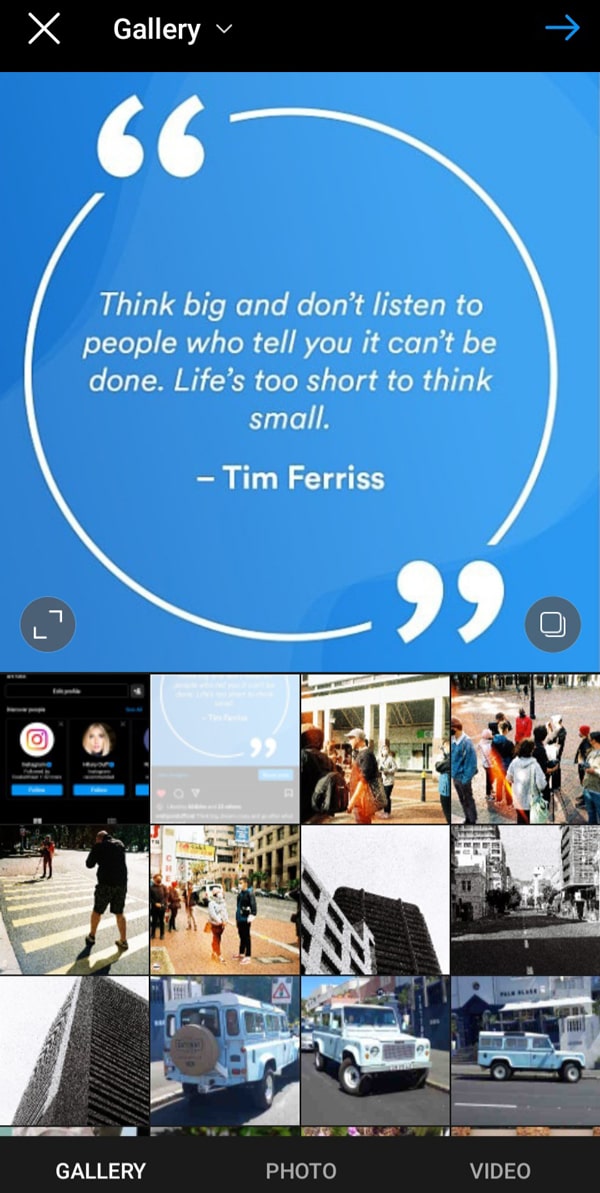
You’ll need to crop your screenshot since it captured everything on your screen and not just the image you want to repost.
Pinch the image and widen your fingers until only the photo appears in the preview window to get the photo into the correct size. Then tap the right arrow in the top right corner to move to the next step.
4. Edit the photo
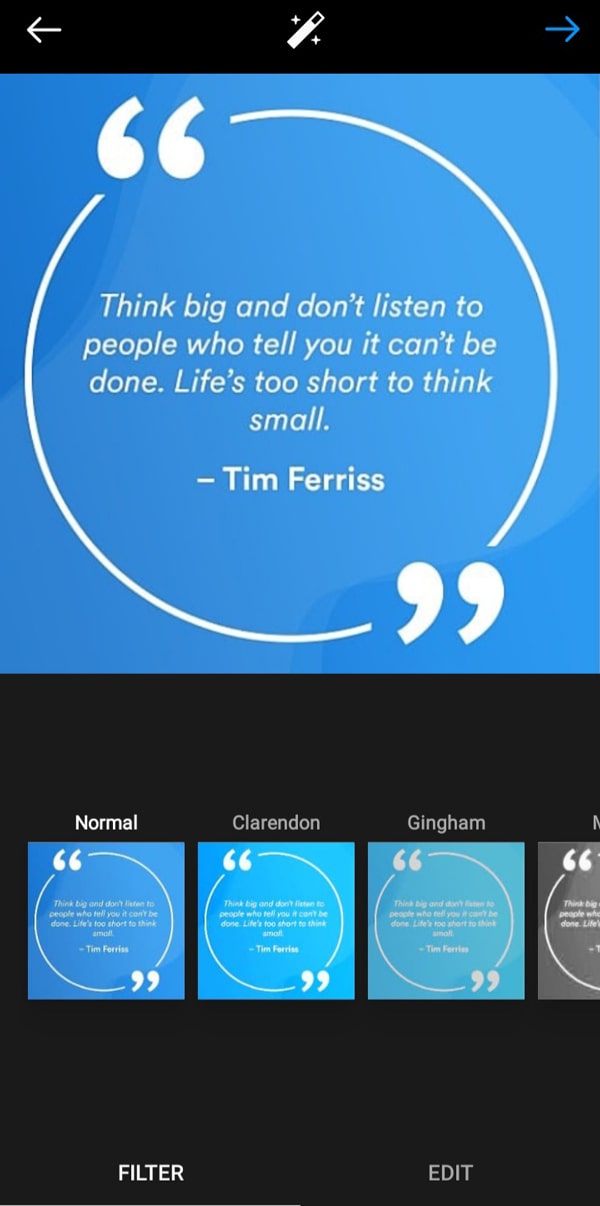
If you’d like to edit the photo or add filters to it, you can do so in this section. When you’re done, tap the right arrow in the top-right hand corner to move to the next step.
5. Add a caption and citation
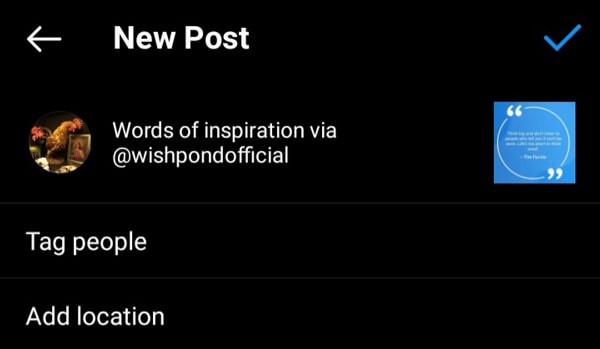
Now it’s time to add an original caption.
You should credit the original poster with a citation by including “@ + [username]” in the caption.
You can also tag people such as the original poster or other accounts and add a location in this section.
6. Repost the photo
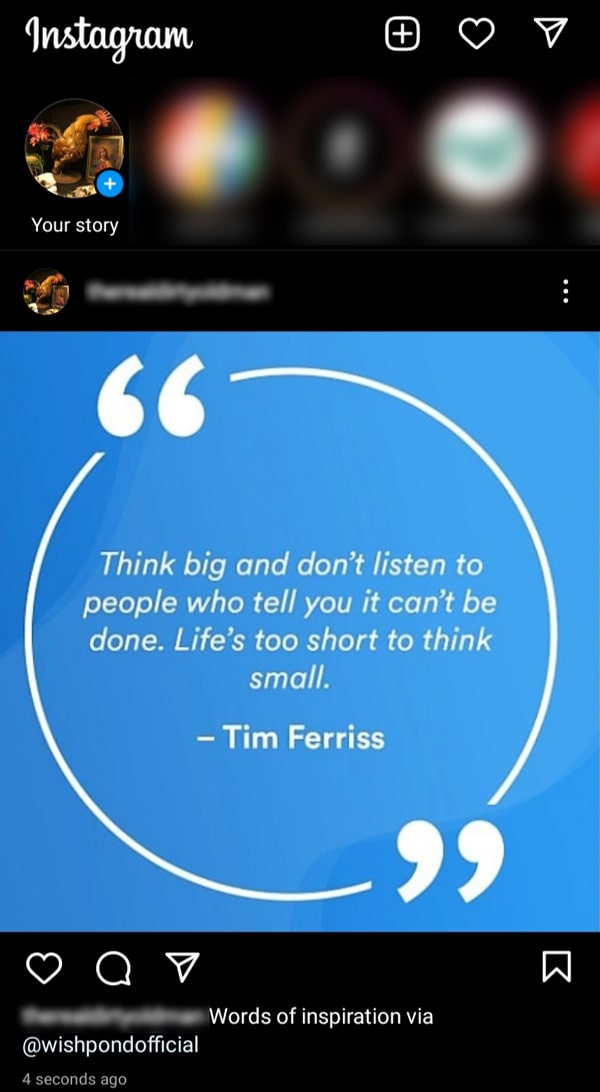
Once you’re ready, tap the checkmark to repost the photo. It’ll look like the below once it’s published.
3rd-Party Instagram Reposting Apps
Apart from taking a screenshot, you can also repost photos with a third-party app. We’ve listed a few of our favorites below, but there are many more to choose from!
Regrann
1. Download Regrann
Head over to the Google Play Store to download Regrann. The app allows you to easily take a photo you want to repost on Instagram and share it on your own feed.
2. Find content you want to repost
In the Instagram app, go to the photo or video you want to repost. If you’re browsing someone’s gallery, tap the image to get the full view.

3. Share the post with Regrann
Once you’re on the full view of the photo you want to repost, click the kebab menu in the upper right corner. Then, tap “Share to…”
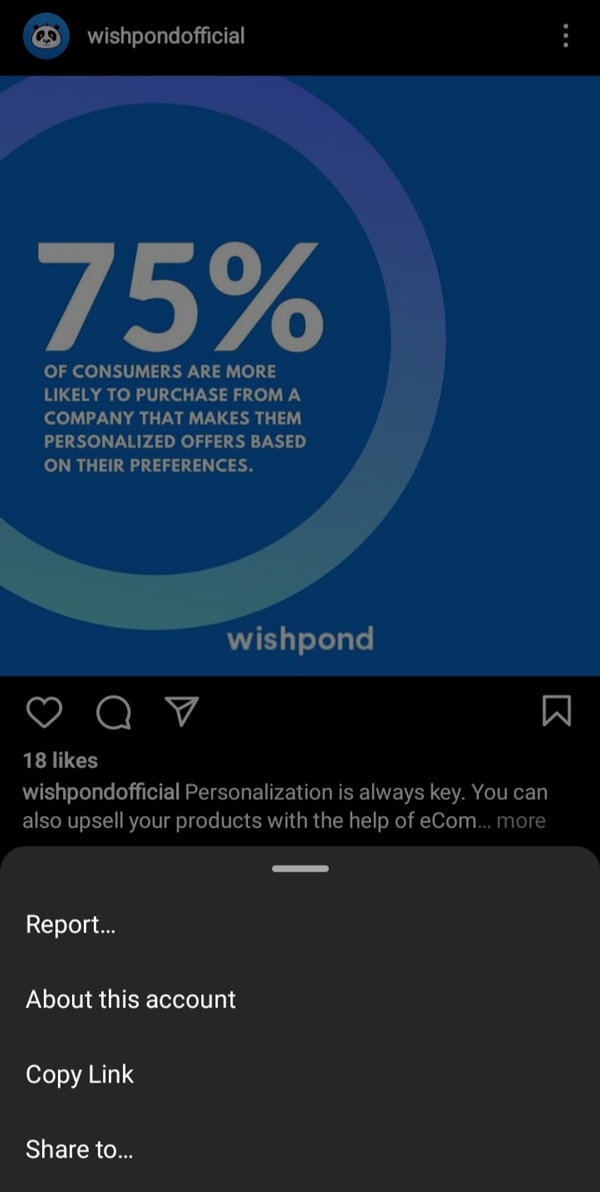
4. Select Regrann
From the list of apps that appears, scroll down until you see the icon for Regrann. Tap it to send the photo to the app.
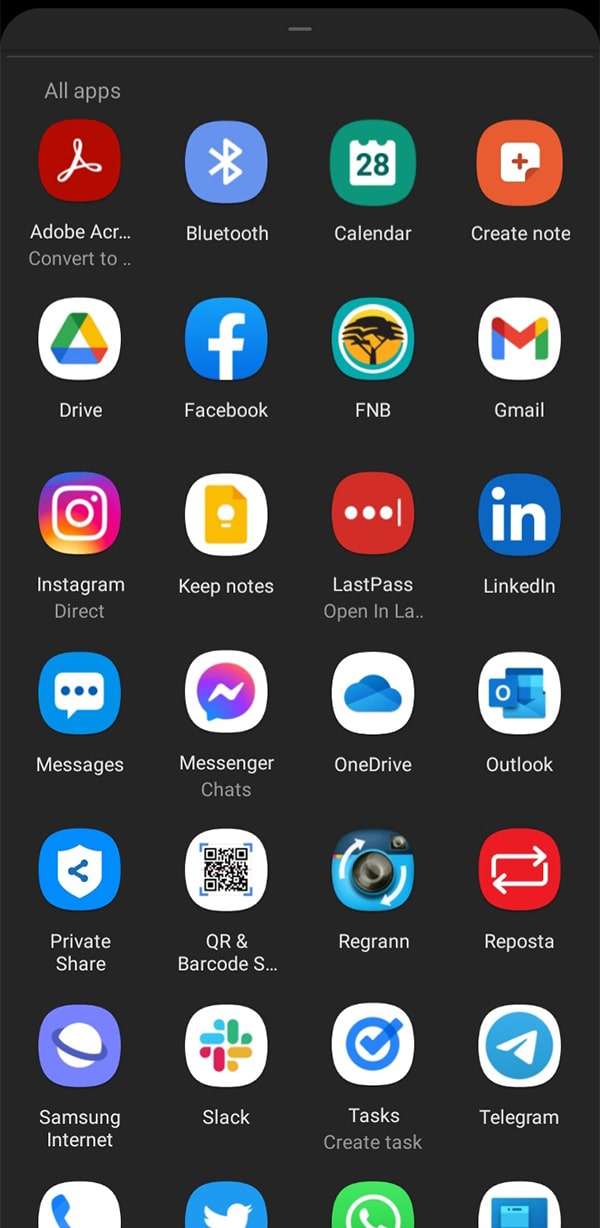
5. Repost the post with Regrann
In Regrann, you can choose to apply filters or text with its editor, save the post, share it with another app, schedule it, or repost it to your Instagram stories or feed.

Reposta
1. Download Reposta
Download Reposta from the Google Play store.
2. Identify what you want to repost

3. Copy the post’s URL
Tap the kebab menu and select “Copy Link” to copy the share URL.

4. Launch Reposta
Locate and launch the Reposta app.
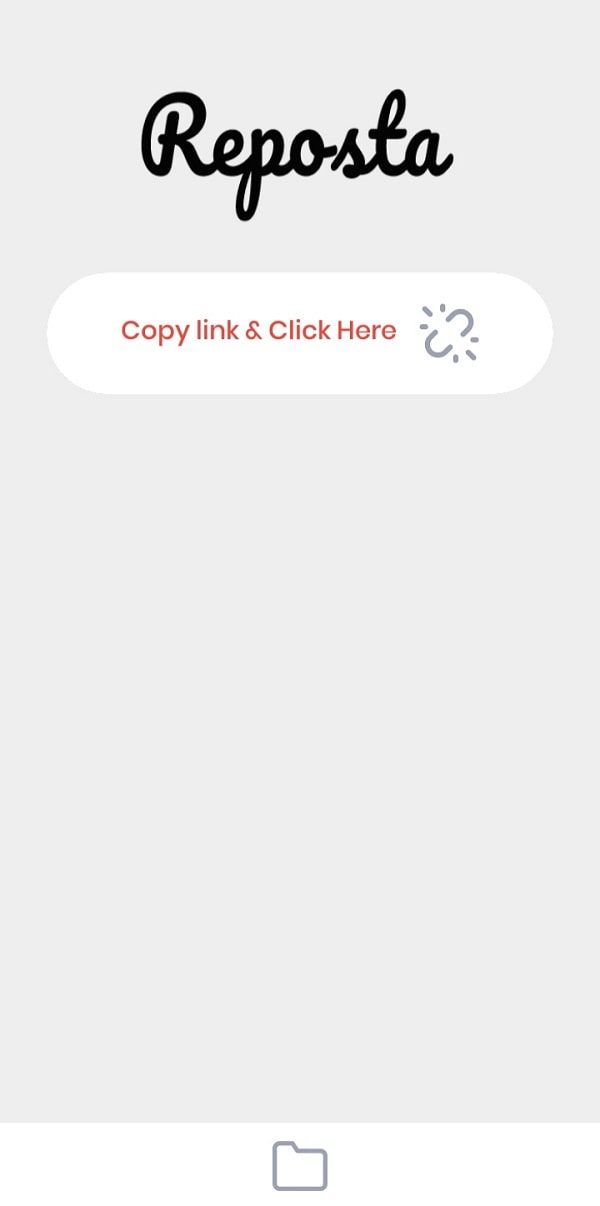
5. Add the link
Tap the text field to add the post’s share URL and retrieve it.
6. Manage the post
Select “Copy Caption” to add the post’s caption to your clipboard. You can also click “Download” to download it to your device.
To repost on Instagram, click “Repost.”

7. Repost the post
Once you’ve clicked “Repost,” your share menu will appear. Select “Instagram Feed” to create a new Instagram post with your selected photo.
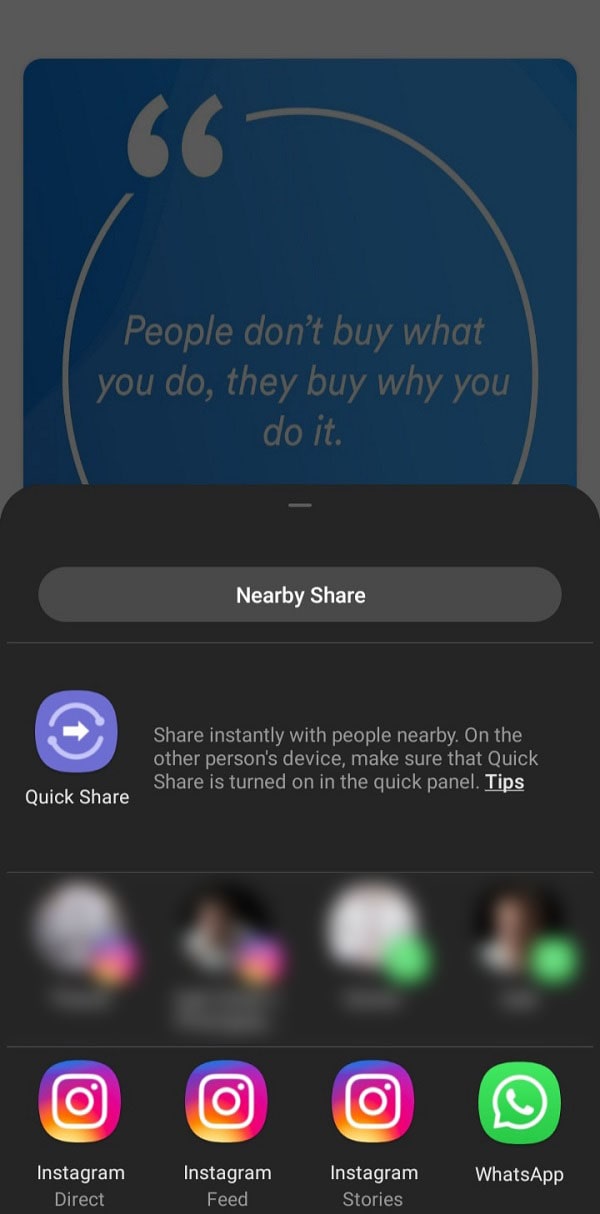
Using iGram
Another option to repost Instagram content that doesn’t require you to install a third-party app is to download the content using a tool like iGram. This is how you use it to repost content.
1. Find the post you want to repost on Instagram
As with the other methods, you first need to find the content you want to repost.

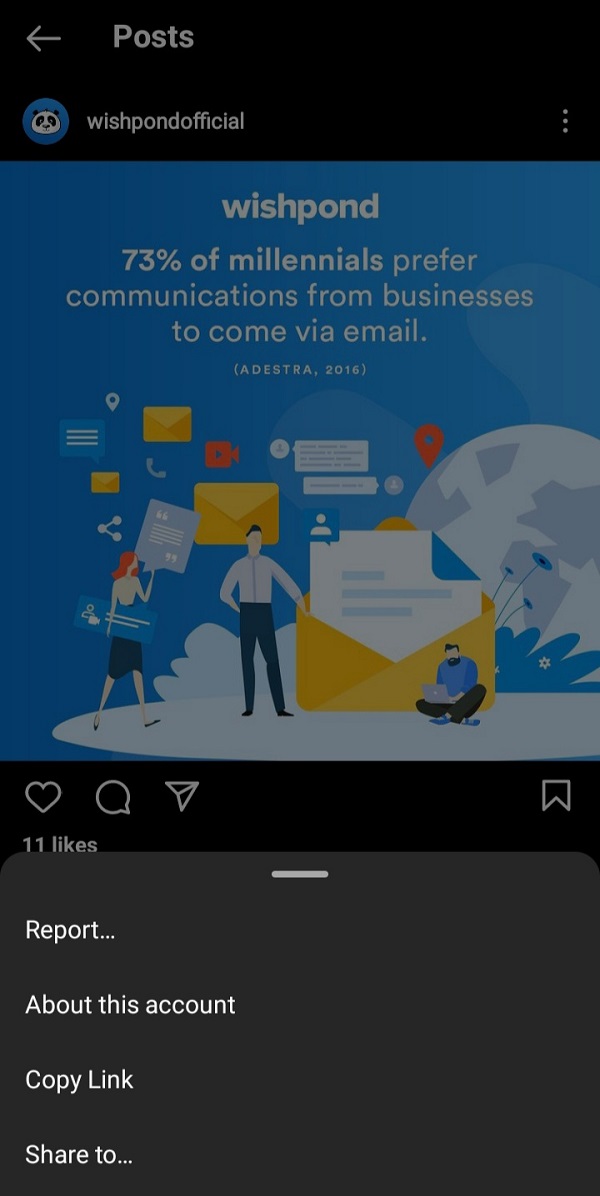
2. Copy the post’s link
Press the kebab menu and select “Copy Link” to copy the post’s share URL to your clipboard.
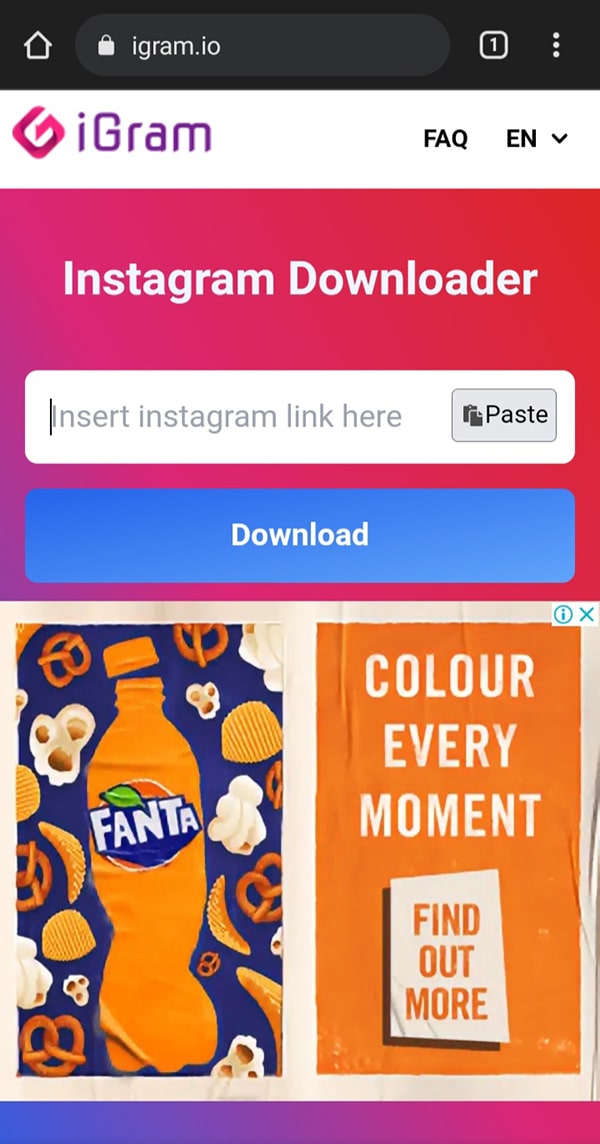
3. Paste the URL in iGram
Visit the iGram website and click the “Paste” button to paste the post’s share URL into the text box.
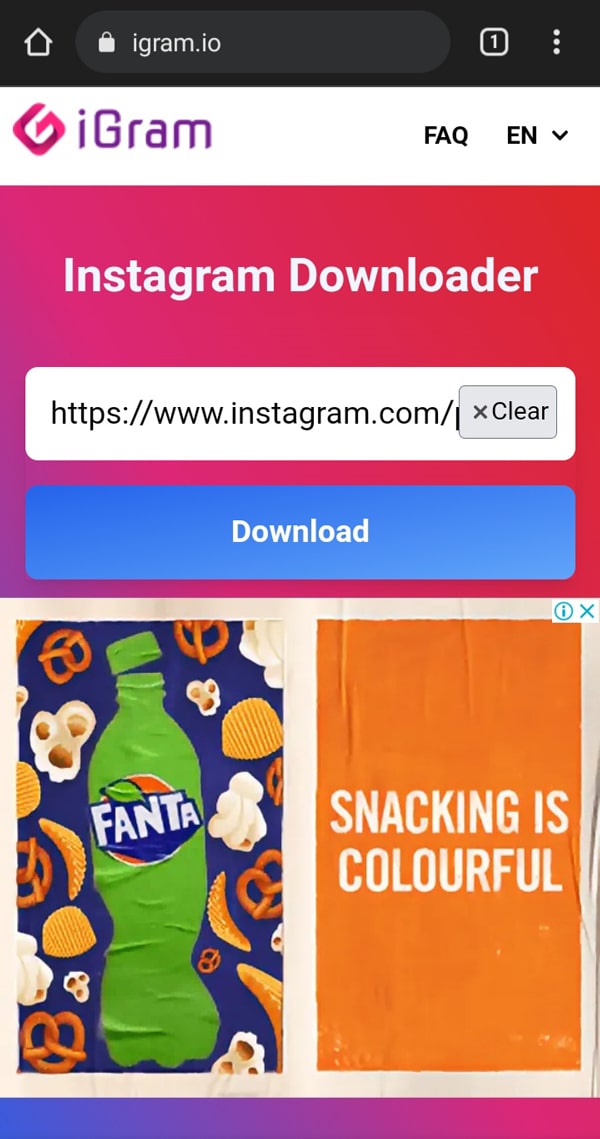
4. Prepare the post for download
Click “Download” to prepare the post for download.
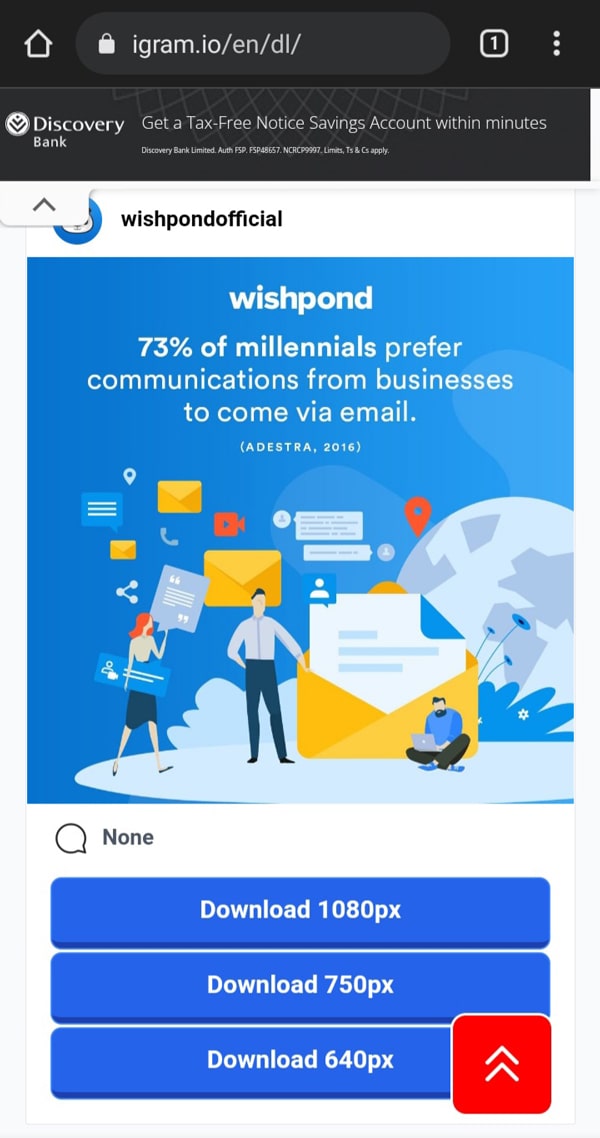
5. Download the post
Download the post in your desired resolution by tapping the relevant button. We recommend you download the post in the highest-available quality, usually 1080px.
5. Repost the content from Instagram
Open Instagram, click the add post button, and locate the post in your gallery. Then proceed to edit or add filters if needed, and add your caption, tags, and location before sharing.
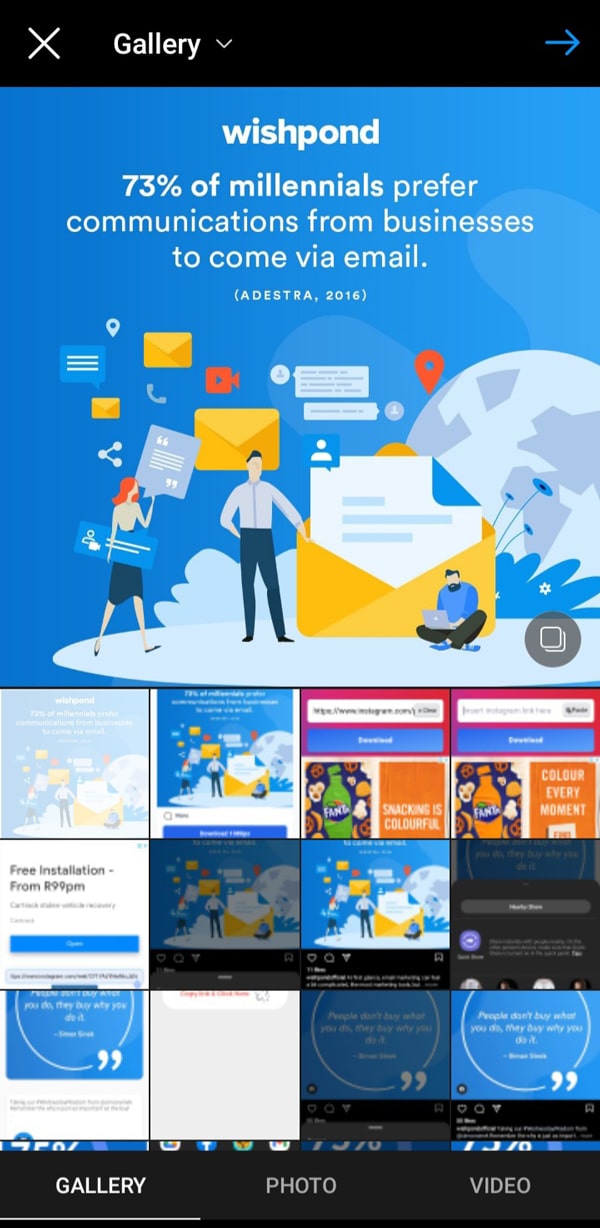
How To Add An Instagram Post To Your Story
Luckily if you’d like to repost an Instagram post to your story, the process is a lot simpler and doesn’t require any external tools. Instead, you can do it right within the app. Let’s take a look:
1. Find the content you’d like to add to your story

4. Customize the story with text, stickers, music, and more!
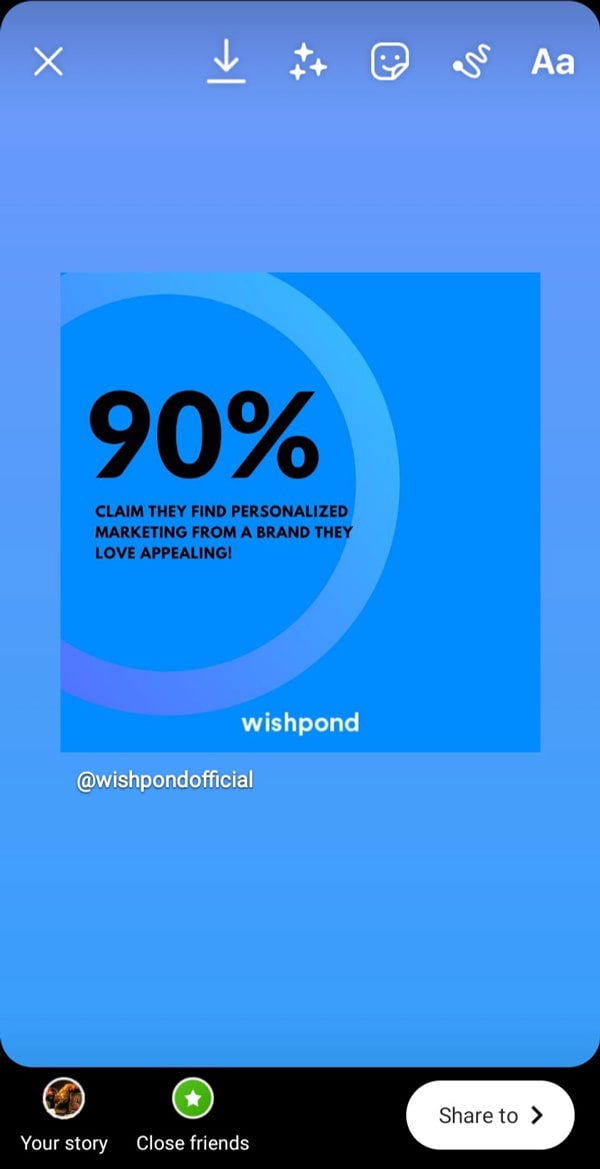
With the icons at the top, you can choose to add animated backgrounds, gifs, stickers, text, music, and more. To share the post with captions, tap on the post to display the captions.
When you’re ready to share the post to your story, press the “Your story” button at the bottom left corner. If you only want to share the post with a selected group of people, you can do so with the “Close friends” button.
When you view “Your story” and you click the kebab menu, you’ll see an option to “Share as post.” This allows you to share the Instagram story as an Instagram post.
How To Repost from Instagram Story To Feed
You can also share an Instagram Story to your feed.
This means that you can repost photos on Instagram by first adding them to your Story and then sharing that Story to your feed.
Bear in mind that this solution will result in a post with lower resolution than the original and possibly result in unwanted borders due to cropping.
To repost an Instagram Story to your feed, simply:
- Open the Instagram Story you want to share
- Tap the kebab menu and select “Share as post…”
- You’ll be taken to a page where you can edit and customize your post.

How To Repost A Story On Instagram
One of the main reasons people want to repost a Story on Instagram is because they were tagged in it. This is also known as mention sharing.
If a public profile tags you in their Instagram Story, your username is visible to anyone, and anyone can tap your username to visit your profile.
If a private profile tags you, only their followers will be able to see this tag. Similarly, if your profile is private, only your followers will be able to view your profile from this mention.
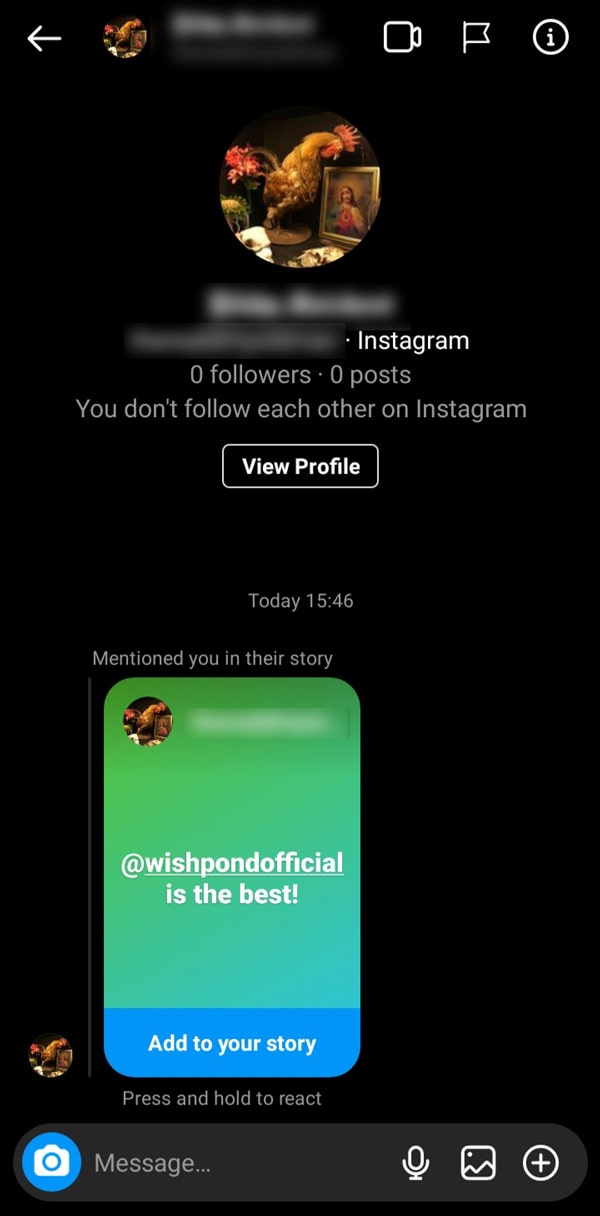
If someone tags you in their Story, you’ll get a direct message from them. If you don’t follow this account, you will get a message request instead.
Currently, you can’t prevent someone from mentioning you, and there is no way to remove your username from an existing Story. If you disagree with someone’s mention of you in their Story, the only option is to try and have it removed by reporting it.
To repost a story you’ve been tagged in, do the following:
- Click the paper plane icon to go to your Direct Messages.
- Open the message notifying you that you’ve been tagged in a Story.
- Click the ”Add to your story” button.
- Customize the Story with stickers, text, gifs, and more.
- Share to either “Your story,” “Close friends,” or Direct Message
How To Repost Stories You’re Not Tagged In
Instagram only allows you to repost stories you’re tagged in.
There are third-party tools that you can use to repost a story you’re not tagged in. An alternative is to take a screenshot of the Story and repost it to your Story manually.
If the Story is a video, you can use your phone’s screen recorder to record it. Then, after trimming, you can add the video to your Story.
Instagram Repost FAQs
Is reposting legal on Instagram?
Reposting is legal as long as you give credit to the original creator of the post. This is why when you repost content to your Instagram Story, Instagram adds the account’s username automatically. While some third-party tools do add the username, you should always double-check to ensure that you’re not breaking copyright laws.
Do I need permission to repost an Instagram Story?
According to Instagram’s Terms of Use, “you can’t post private or confidential information or do anything that violates someone else’s rights, including intellectual property.”
This means that it’s a good idea to ask permission before reposting someone’s Story. To be extra safe, keep a record of their response if it’s okay with them.
Can I see who reposted my Instagram Story?
If you tag another account in your Instagram Story and they repost it, you’ll get a direct message notifying you that they’ve done so. You can even choose to add this post to your story if they’ve added anything significant to it.
However, if someone reposted your Instagram Story by screenshotting it, you won’t get a notification that they did so unless they tagged you in their Story.
Why Should You Repost On Instagram?
Creating high-quality content consistently can be tough, especially if you’re trying to post 2-3 times a week as is generally recommended.
This means having a backlog of good content is vital.
Additionally, the importance of user-generated content can’t be overlooked. 79% of people say UGC highly impacts their purchasing decisions.
Reposting user-generated content on Instagram is a great way to build brand trust among Instagram users by highlighting endorsements from your customers, employees, and brand loyalists.

Related Content
Wrapping Up
Now that you know how to repost on Instagram you can start sharing content from your friends, family, and brands you support.
No matter which of the above methods you choose, be sure you’re giving credit to the original creator in your captions.
Looking for a way to repost content on Instagram that we missed? Do you share content using different methods or apps? Let me know in the comments.


