

Convert any currency to allowed PayPal currencies for PayPal’s Payment Gateway “PayPal Standard” within WooCommerce
Attention: before you make a purchase, please make sure your WordPress and WooCommerce Versions are supported!
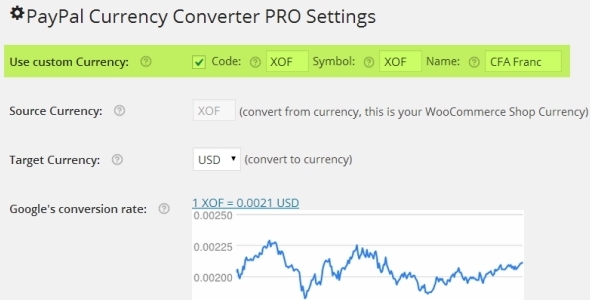
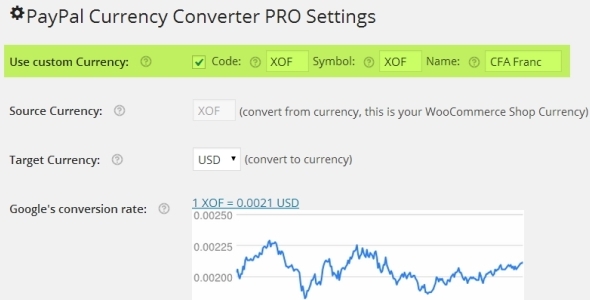
This plugin is for WooCommerce shops with a shop currency not in this list: “AUD, BRL, CAD, CZK, DKK, EUR, HKD, HUF, ILS, JPY, MYR, MXN, NOK, NZD, PHP, PLN, GBP, SGD, SEK, CHF, TWD, THB, USD”, or want to convert into a different PayPal currency to avoid conversion fees by PayPal. Go to the 2nd tab and choose your favorite exchange rate provider other than the preselected one. If you need a custom currency,check the check-box “Use Custom Currency” on top of the 1st tab, then you will see 3 new text input fields called Code, Symbol, and Name. Fill this out with the appropriate settings. For example: Code=”XOF”, Symbol=”XOF”, Name= “CFA Franc” You can set a fixed amount and a calculated fee based on a percentage. You can decide if the handling fee should be taxed or not, and you can decide if the percentage calculation should as well be calculated including the shipping total. Furthermore you may name your handling fee resp. how it is shown in your order details. As soon as the amount or percentage is greater than zero, it will be added and as a part of the order total be converted as well. So you can forward the PayPal charge to your customer. This settings are on by default. Override PayPal’s Validation error on “amount comparison” or “PayPal currencies do not match”. Orders for virtual (downloadable) products will be completed when checked! Non virtual product orders will be set to processing and stock will be reduced.
For automatic updates you have three options. One option is to use a suitable Cron-Job plugin like “WP-Crontrol” and register the hook “ppcc_cexr_update” for your desired update frequency. Another option is to call the given AJAX url (http://yourdomain.com/wp-admin/admin-ajax.php?action=ppcc&ppcc_function=cexr_update) from your hosting servers cron job or an online cron job service like EASYCRON.COM for a hassle free solution. (This ensures an accurate timing for the upates.)
If the checkbox “log” is checked an email notification will be sent to the admin’s email address every time the exchange rate is updated with date, time, and exchange rate value. Furthermore the log file will be populated with every action the plugin does. The log file can be found and viewed in the indicated location while using your FTP client. For additional convenience you can open the log-file in a pop up window. To make this work add: “Allow from <your servers ID will be indicated in the plugin>” to the .htaccess file inside ”../plugins/woocommerce/logs/”
Sample payment description content:
Or simply want to forward PayPal fees to your customer.
FEATURES
Important Note for versions 3.2.1 or older: shippment does not appear correct in the Payment description on checkout, but only when shippment is based on country and is changed on checkout. Is fixed in the version 3.3.MANDATORY SETTINGS
OPTIONAL SETTINGS
EXCHANGE RATE PROVIDER SELECTION
Recommended: register a valid API ID and activate it with the radio button.
CUSTOM CURRENCY
Save your settings and navigate to WooCommerce’s settings page where you should find your new custom currency. Select it and save your settings. Navigate back to PayPal Currency Converter Pro settings page to check if everything is set.
HANDLING FEES

ORDER AUTO COMPLETION
AUTOMATIC EXR UPDATES
LOG / EMAIL NOTIFICATION
How can I show the converted total, tax, and conversion rate on the checkout page?
Cart Total: <br />

Shipping Total: <br />

Handling % plus fixed.<br />

Handling total: <br />

Order Total Tax: <br />

Order Total inclusive Tax: <br />

Conversion Rate:
History
add_filter( 'woocommerce_should_load_paypal_standard', '__return_true' );
to your functions.php and use Paypal standard
More info here.
This order is payed with PayPal, converted with the currency exchange rate <em>%s%s/%s</em>.<br />Billed Total: <strong>%s</strong>
Works with PayPal Express
<strong>

<span id="ppcc_total" /> (Includes <span id="ppcc_tax" /> Tax)</strong>

(Currency conversion rate = <span id="ppcc_cr" />)
Source


